![Halda Logo Black Tight-2.svg]](https://info.halda.io/hubfs/Halda%20Logo%20Black%20Tight-2.svg)
The following guide will walk you through the configurations to:
- Import and Send Halda AI Campaign Emails within Slate
- Export Campaign Performance into Halda’s Application for Reporting
- Test the Full Process
Configuring Slate Instance
The following section will walk you through the process of configuring Slate to receive emails from Halda and create the mailing to send individualized campaign emails. To accomplish this, Halda leverages a combination of Entities and Custom Fields to store Emails.
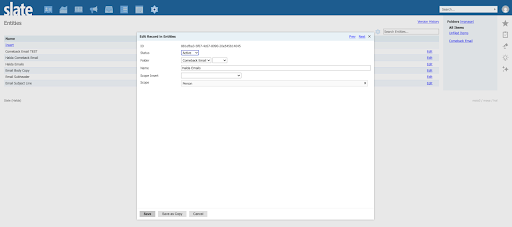
Step 1: Create Email Entity
If you are using Halda's AI Comeback Emails, you already should have a Halda entity with the correct settings.
Status: Active
Folder: Choose/Create folder of your choice
Name: Halda Emails
Scope Insert: Choose “person” scope
Save Entity
Step 2: Build and Scope Custom Fields
If you have Halda's AI Comeback Emails, you will only need to build custom fields for "Campaign ID" and "Email ID".
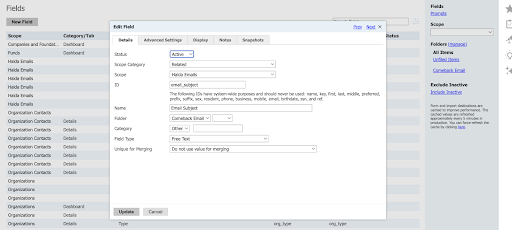
Create New Fields in the Field Editor. Build fields for Email ID, Campaign ID, Email Subject, Email Pre-header, and Email Body.
Status: Active
Scope Category: Related
Scope: Halda Emails
ID: email_subject
Name: Email Subject
Folder: Choose/Create Folder of your choosing
Field Type: Free Text
Unique for Merging: Do not use value for merging
Repeat this this step for Email ID, Campaign ID, Email Pre-header, and Email Body fields.
Save
Step 3: Build Deliver Mailing
If you are using Halda's AI Comeback Emails, you can duplicate your current mailing and move on to Step 5.
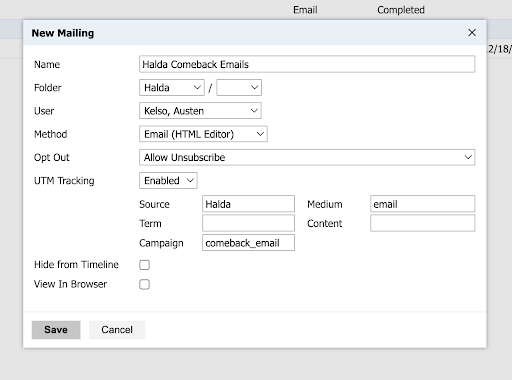
Create New Deliver Mailing
Name: Choose your own name. We suggest “Halda Comeback Email”
Folder: Create/Choose folder of your choosing
Method: Email
Opt out: Allow Unsubscribe
UTM Tracking: Enabled. Source: halda | Medium: email | Campaign: comeback_email
Save
Step 4: Build Mailing Recipient List
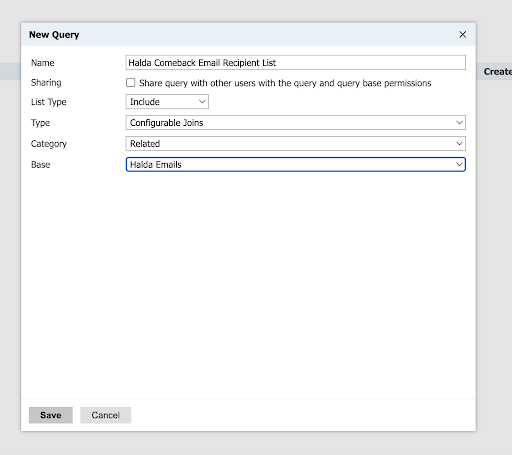
- Name: Name of your Choosing. We suggest “Halda {insert campaign name} Campaign Email Recipient List”
- List Type: Include
- Type: Configurable Joins
- Category: Related
- Base: Halda Emails*
- Save
*If you do not see the name of your Entity displaying the Base dropdown, you may need to refresh your Configurable Joins Library.
Step 5: Build Query
Add the following export fields to your recipient list query:
- First Name
- Last Name
- Email Address
- Email Subject
- Email Preheader
- Email Body
- Email ID
- Campaign ID
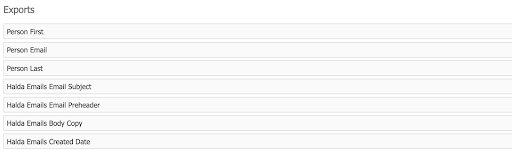 Step 6: Filters
Add the following filters to your recipient list query:
- Created Date (Halda Emails)
- Created Date = Today
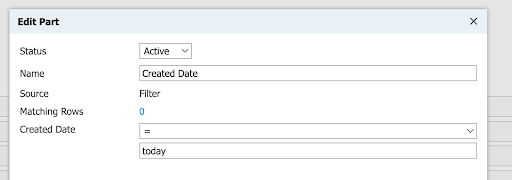
- Subquery Campaign ID Exists
.png?width=670&height=655&name=image%20(26).png)
- Subquery Campaign ID Equals = {insert campaign id from the Halda app}
We assign a Campaign ID to each of your campaigns and will use this value as the filter for separating emails to the correct mailings. This ID is not saved until the campaign as a whole is saved. You will be able to find your campaign ID in the AI Email Campaign card. .png?width=670&height=238&name=Untitled%20design%20(59).png)
.png?width=670&height=658&name=image%20(28).png)
Joins
Person
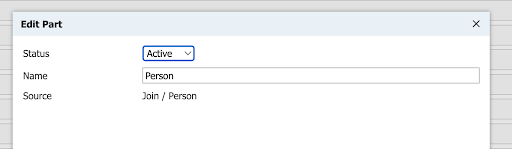
Step 7: Edit Message
- Sender: Update sender to your preferred institutional email address
- Content Templates:
- Update message with your preferred email template
- Add required Halda Email Merge Field 0. This field will need to be manually typed into the content and then saved before showing as a merge field.
- Add Reply To (optional)
- Save
Campaign emails do not include a signature or sign-off.
Adding 'rawhtml' to the Halda-Emails-Body-Copy field is essential in order for Slate to properly parse and style the email content being sent from Halda.
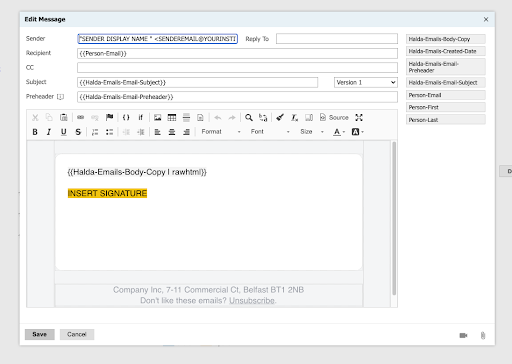
'Halda-Emails-Body-Copy | rawhtml' will not show as a merge field until you click the "Save" button in the bottom left corner.
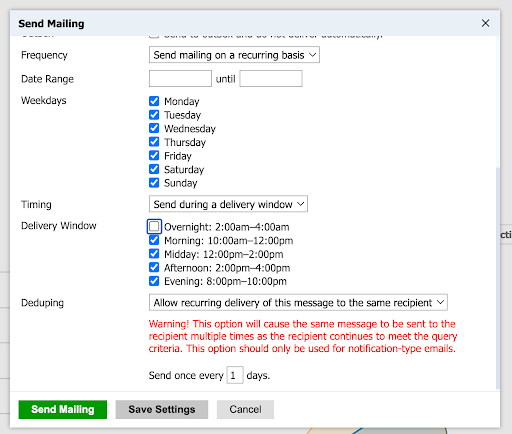
Step 8: Send Mailing Configurations
Frequency: Send mailing on a recurring basis
Weekdays: Select all days of the week
Timing: Send During Delivery Window
Delivery Window: Select all windows except “Overnight”
Deduping: Allow recurring delivery of this message to the same recipient
Send once every “1” Days”
Save Settings
Halda will send emails over to Slate on the day it should send. The combination of configurations listed in this step ensure that each student can only receive one email per day from this mailing.
Step 9: Import Halda AI Email Suitcase
Suitcase: e0a06a40-e244-40f2-8b5d-d1f95cee5a91:hal
The suitcase contains the following items:
- Halda Email Source Format
- Halda Email Reporting Query (For scheduled export back to Halda’s Application)

Filter Check: Open the Halda Email Reporting Query, select "Edit," and scroll down to the filters section. Click the "Edit" icon on the mailing filter in place and search for Halda in the list of mailings. Verify that your campaign mailing is selected. If it is not, select the mailing and hit "Save."

Step 10: Schedule Delivery Report Export
Status: Active
Destination: Web Service (Remote)
Endpoint: Will be provided in the Halda app.
Format: Delimited (tab-delimited, CSV, etc.)
Delimiter: Comma (,)
Headers: Include header row
Text Qualifiers: Double quotes (")
Line Endings: <Cr><Lf>
Encoding: Unicode (utf-8)
Requested Delivery: Select all available options.
Requested Weekdays: Select all available days.
Requested Priority: Normal Priority
If you need any assistance with integration set up, reach out to your Account Manager.