![Halda Logo Black Tight-2.svg]](https://info.halda.io/hubfs/Halda%20Logo%20Black%20Tight-2.svg)
AI Form Selection
Within your AI Landing Page, you will display a Halda AI Form. This form does not have to be currently published in order to be displayed in the landing page. Use the drop down in the top center of the landing page builder to select the form you would like to display.

Background
The following settings can be found in the background section of the landing page builder.
- Background Color: Input a hex code to customize the background color of the landing page.
- Background Image: Upload a jpeg or png file to use in the background or choose an image previously uploaded in the image gallery.
- Background Video (YouTube or Vimeo): Use a YouTube or Vimeo video in the background of the landing page.
- Enable Color Overlay: Add a color overlay over your background to make it easier to read the landing page content.
- Overlay Color: Input a hex code to change the overlay color.
- Overlay Opacity: Adjust opacity with the slider tool.
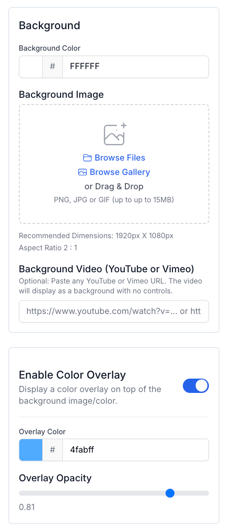
We recommend using either an image or a video in your landing page background. If you would like examples of how other institutions have styled their landing pages, connect with your Account Manager.
Banner
The following settings can be found in the banner section of the landing page builder.
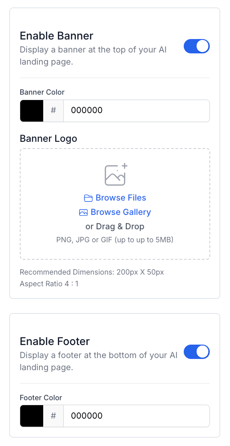
- Enable Banner: The banner is automatically turned off when making a new landing page. Toggle the banner on to customize the color and logo displayed.
- Banner Color: Input a hex code to change the banner color.
- Banner Logo: The logo in the branding section of the Halda app will automatically appear when you turn on the banner. You can replace the logo by adding a new jpeg/png file or selecting an existing image from the image gallery.
- Enable Footer: The footer is automatically turned on for the landing page. If you do not want a footer to show, use the toggle the footer off.
- Footer Color: Input a hex code to change the banner color.
Content
The following settings can be found in the content section of the landing page builder.
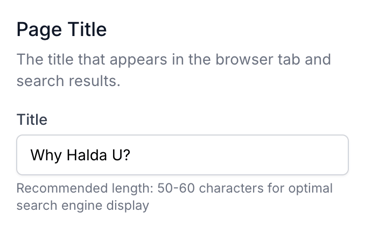
- Page Title: What you title your landing page will be what displays when using your AI Landing Page in ad campaigns.
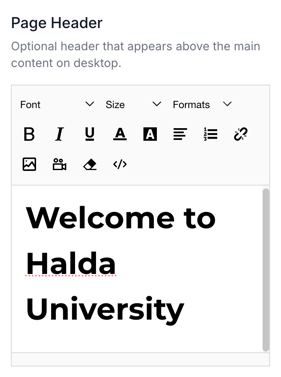
- Page Header: This optional field will add text that shows above the AI Form when on a mobile device. The page header will show above the page content in a desktop view.
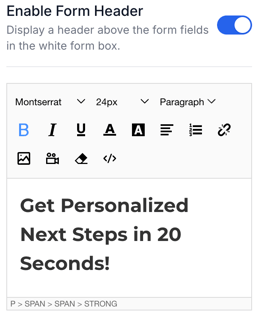
- Enable Form Header: This optional field will add text directly on the AI Form that can function similar to an AI Form billboard.
- AI Landing Page Content: This is where you will add the content you would like to display on the landing page. You can customize the font size, style, and color with the WYSIWYG editor.
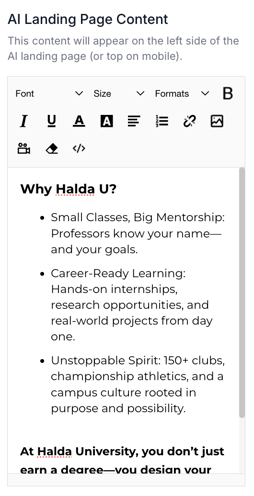
We recommend keeping your landing page content under 350 characters and focused on information most valuable to students.
Remember, students will get additional content that is personalize and specific to them in the response page of the AI Form in the landing page.
Publishing
To publish your AI Landing Page, click the enable toggle in the top right corner of the landing page builder. Once enabled, the URL where your landing page is published will appear in the top center of the builder next to the "Active" notification.
.gif?width=670&height=238&name=Untitled%20design%20(16).gif)
Analytics and Other Settings
You will be able to view the performance of your AI Landing Page in the widget found in the AI Landing Page section of the Halda app. Overall performance analytics for all AI Landing Pages will be displayed at the top of the screen.

On this same page that you will be able to add a page favicon that would appear in the browser tab for your landing pages.

To preview your landing page, select the eye icon on the AI Landing Page widget:

To preview the AI Form associated with your AI Landing Page, select the form icon on the widget:

If you need assistance with your AI Landing Page configuration, reach out to your Account Manager.