![Halda Logo Black Tight-2.svg]](https://info.halda.io/hubfs/Halda%20Logo%20Black%20Tight-2.svg)
Where to find the publish settings
When you have the edit view of a form open, scroll down to the bottom in the left navigation area of the form editor.
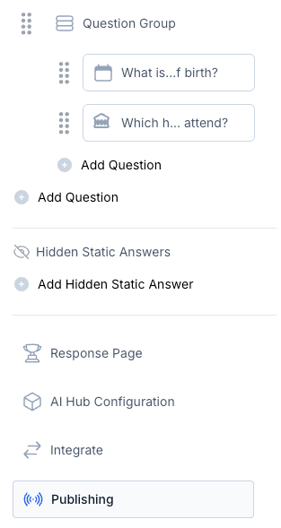
At the top of the publishing page for a form variant, you will need to click the “Click to Pop” tab, and then turn on the “Enable Click To Pop on a webpage” toggle.

Option 1: Update current website buttons to trigger form
Halda can automatically trigger your form to appear when a user clicks a specific button on your website. No extra coding is required on your end.
Simply enter the link of your existing form, and Halda will take care of the rest by listening for button clicks navigating to that link. Instead of redirecting users to the link, Halda will display the form directly on your website as a modal overlay.
Example:
If your current form link is https://genericformbuilder.com/myform, entering it here will prevent users from navigating to that link when clicking a button that navigates to that link. Instead, they'll see the form pop up right on your site.
Option 2: Manually add code to your website
To make a click to pop AI Form:
- Add the class 'halda-click-to-pop-form' to the element that will trigger the form.
- Add the attribute for the form ID shown on the page to the same element
If you need additional assistance, contact your account manager.