![Halda Logo Black Tight-2.svg]](https://info.halda.io/hubfs/Halda%20Logo%20Black%20Tight-2.svg)
Where to find the publish settings
When you have the edit view of a form open, scroll down to the bottom in the left navigation area of the form editor.
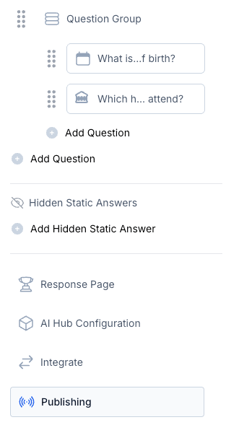
At the top of the publishing page for a form variant, you will need to click the “Embedded” tab, and then turn on the “Enable Embedding on a webpage” toggle.
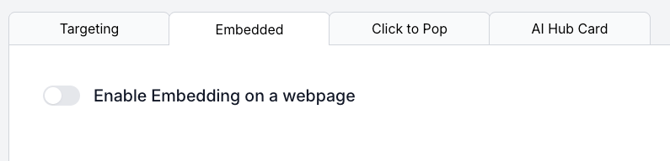
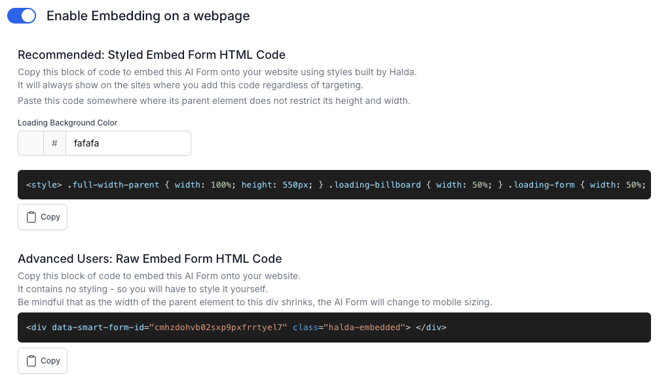
With this toggled on, you will have two options available for embedding your form.
Option 1: Recommended – Styled Embed Form HTML Code
This is the “plug it in and keep moving” option. Copy this code if you want Halda to handle the styling for you. It includes built-in CSS for layout, loading behavior, and responsiveness, so the form looks polished right out of the box. You can also set a loading background color to better match your site’s design.
Best practice: paste this code into a section where the parent container does not restrict width or height, so the form can fully stretch its legs.
Option 2: Advanced Users – Raw Embed Form HTML Code
This is the DIY route. The raw embed gives you a clean, unstyled div that you can customize entirely with your own CSS. Use this if you want full control over spacing, colors, or layout—or if you enjoy living a little closer to the edge.
Please note: as the parent container narrows, the form will automatically shift into a mobile-friendly layout.
In short, choose Styled if you want a quick update with predetermined styling, choose Raw if you want full creative control (and know your way around CSS).
If you need assistance adding the embed code to your website, reach out to your account manager.