![Halda Logo Black Tight-2.svg]](https://info.halda.io/hubfs/Halda%20Logo%20Black%20Tight-2.svg)
Updating My Email Notifications
To change your personal email notifications, navigate to the “Notifications” page from the hamburger menu in the upper right corner of the Halda app.
This will open a screen where you can toggle notifications on or off different Halda emails.
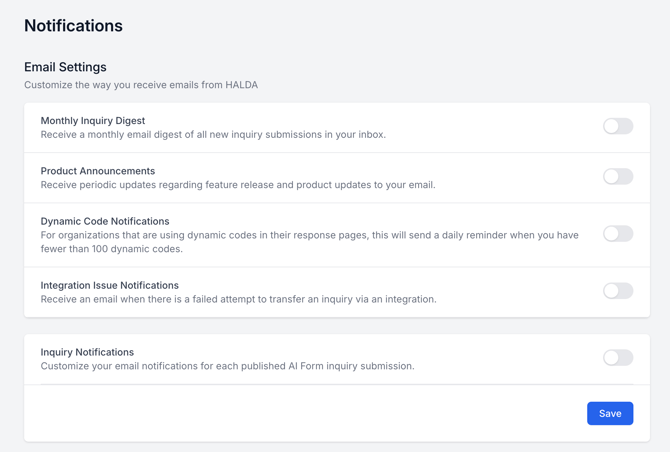
If you want to turn on Inquiry Notifications, you can turn them on for all forms or select forms. After you toggle on Inquiry Notifications, you can use the toggle next to each form name to change the notification setting for that form only.
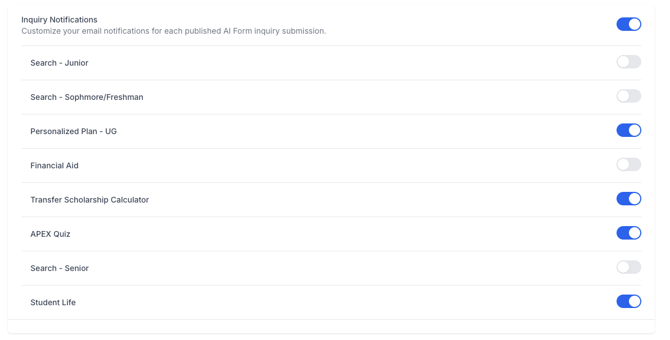
Please note that only published forms will show in the Inquiry Notification list.
After you have finished adjusting your notification preferences, hit the blue "Save" button in the bottom right corner.
Updating Notifications on Behalf of a Team Member
To update email preferences for a party other than yourself, navigate to the “Team” page in the hamburger menu. Please note you will need admin access in order to update other team members settings.
Once on the Team page you can find the row with the individuals name you are making edits for and click “Edit”. Click the “Notifications” tab to find the email notifications section.
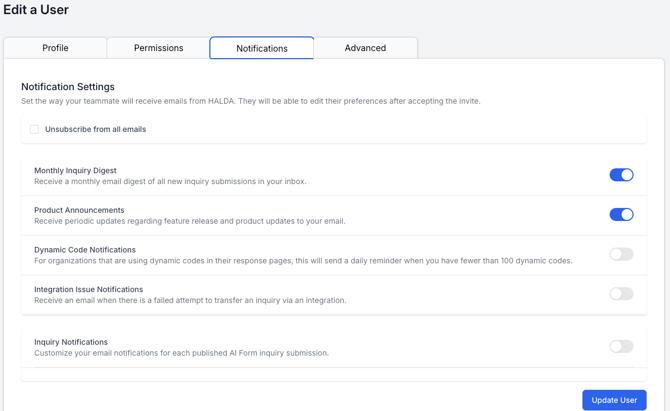
If you are unsure what each notification is, reference the description under the notification name.
If you want to turn on Inquiry Notifications, you can turn them on for all or select forms. After you toggled on Inquiry Notifications, you can use the toggle next to each published form to change the notification setting for that form only.
When you’re done toggling on or off the notifications to your preferences, be sure to save by clicking the blue “Update User” button.
If you have any questions about this process, connect with your Account Manager.