![Halda Logo Black Tight-2.svg]](https://info.halda.io/hubfs/Halda%20Logo%20Black%20Tight-2.svg)
Overview
The JSON webhook configuration allows Halda to communicate directly with your CRM using structured JSON payloads. This format is recommended for systems that natively accept and parse JSON data, as it supports nested data, type validation, and greater flexibility for mapping fields.
Sending Inquiries from Halda to Your CRM
When a prospect submits an inquiry, Halda can post the data to your CRM endpoint using a POST request with a JSON body.
Requirements
Before setup, please provide the following information to your Halda Integration Specialist:
-
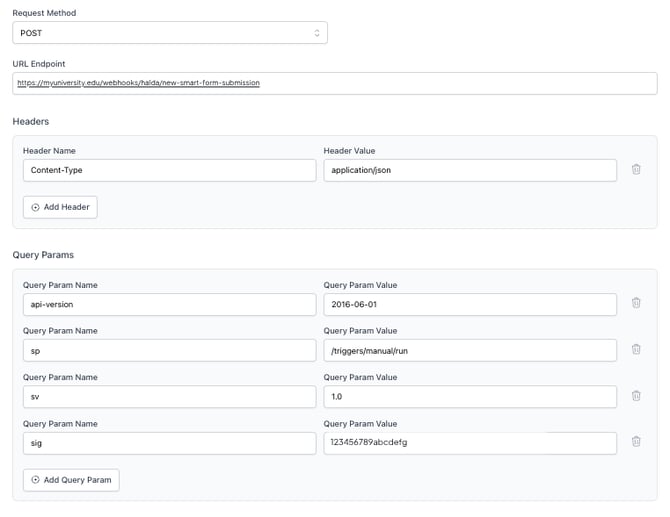
Webhook URL Endpoint — The full URL where your system will receive data.
-
Headers — Any required headers for authentication or data parsing (e.g.,
Authorization,Content-Type). -
Query Parameters (if applicable) — Optional URL parameters used by your CRM.
-
Authentication Method — Bearer token or basic authentication credentials.
Example Request
POST https://crm.example.edu/api/leads
Content-Type: application/json
Authorization: Bearer YOUR_BEARER_TOKEN
Example JSON Payload
{
"event": "inquiry.created",
"student": {
"first_name": "Ava",
"last_name": "Lopez",
"email": "ava.lopez@example.edu",
"phone": "+1-555-555-5555"
},
"interest": {
"program": "MBA",
"term": "Fall 2026"
},
"metadata": {
"source": "Halda Widget",
"timestamp": "2025-10-13T15:45:22Z"
}
}
Field Mapping
Halda has preset values that can be passed to your CRM without configuration. If your system has specific requirements for values passed, you have the ability to customize these values.
Your Integration Specialist will work with you to align Halda’s data fields (such as student name, contact info, and program interest) with the corresponding CRM fields.
Configuring your Webhook
Take the following steps to set up a webhook connection in Halda with a JSON format:
- Navigate to the Integrations tab in the top right corner menu. Once in the integrations page, select "Add Integration" and click "Connect" for the Webhook Export option.
- Name your webhook (we suggest matching the name of the webhook to the AI form it will be connected to), adjust your payload format to JSON, and select the AI Form that you want to trigger the webhook.
- Input your URL Endpoint in the box provided.
- Input any headers by selecting the "Add Header" button.
- Input any query params by selecting the "Add Query Param" button.
- Configure your payload fields by clicking the blue "Configure Payload Fields" at the bottom of the screen.
- To customize the values passed by Halda, turn the "Export All Fields" toggle off. This will load all fields Halda will pass. You can remove certain information from sending by hitting the Remove button on the right hand side. You can adjust the value name in the Webhook Field Name text boxes.
- Save your updates with the Save button in the bottom right corner.
After configuring your webhook, saving, and returning to the integrations page, you will see that your webhook connection is live. If you need to disable this connection, you can do so by selecting the Deactivate button on the right side of the screen.
Response Expectations
Your CRM should return a 2xx response code to confirm successful receipt. Halda will retry failed requests up to a defined limit (usually 3–5 attempts) with exponential backoff.
If you have any additional questions or need assistance with your webhook configuration, please reach out to our support team at support@halda.ai.