![Halda Logo Black Tight-2.svg]](https://info.halda.io/hubfs/Halda%20Logo%20Black%20Tight-2.svg)
Accessing the Records Page
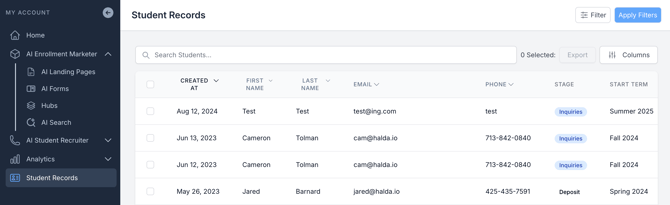
In the bottom-left corner of your navigation bar, you'll find a tab labeled either "Student Records" or "Parent Records," depending on the school type you're viewing (Higher Education vs K12). Click on this tab to open the records page.
Viewing and Filtering Records
Once on the page, you'll see a list of recent records from students or parents who have submitted inquiries via your website forms.
Using Filters: At the top of the page, you'll find a "Filter" button. Clicking this allows you to apply various filters such as date, AI form, funnel stage, and more. You can add multiple filters and save them as a filter group for future use.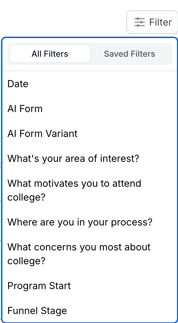
Applying Filters: After setting your filters, click the "Apply Filters" button to refresh the page and view the filtered records.

Customizing Columns and Exporting Data
Selecting Columns: Next to the filter options, you’ll see a "Columns" button. This allows you to customize which data columns are visible. Columns include personal information like names and contact details, lead information, metadata, and form responses. After selecting the columns you want, click "Apply" at the bottom of the column selection window to update your view.
.gif?width=544&height=444&name=Untitled%20design%20(19).gif)
Exporting Data: To export data, use the checkbox at the top-left of the records list to select all entries or select individual entries. Once selections are made, the "Export" button will become active. Click it to download the data in your preferred format.
.gif?width=670&height=263&name=Untitled%20design%20(20).gif)
Exploring Individual Lead Profiles
Click on any lead (e.g., "John Doe") to open their profile.
Overview Tab: The Overview tab shows contact details, location, and form response data.
.gif?width=544&height=444&name=Untitled%20design%20(17).gif)
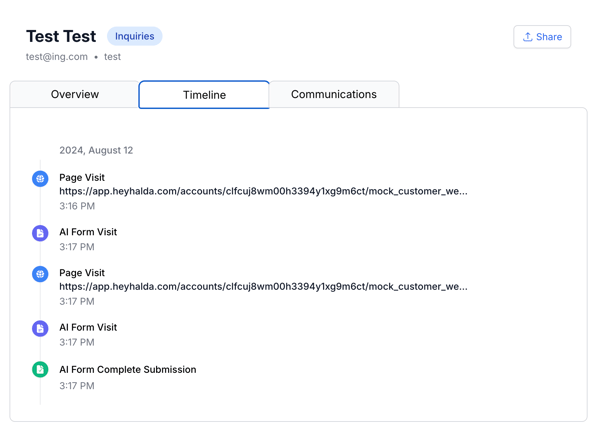
Timeline Tab: The Timeline tab tracks every interaction the lead has had with your site, from visits to form submissions.
Communications Tab: This tab allows you to generate AI-assisted email drafts tailored to the lead’s information. You can select from templates like an introduction or identifying their stage and then copy or regenerate the draft as needed.
.gif?width=580&height=473&name=Untitled%20design%20(18).gif)
Additional Features
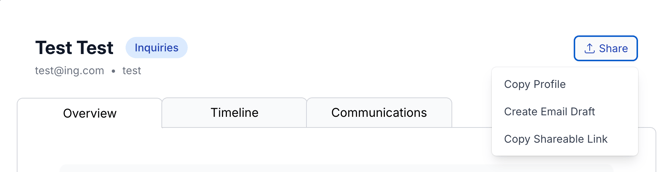
Sharing Profiles: At the top of each lead profile, there's a "Share" button that lets you copy a link to share the lead’s details with colleagues.
If you have additional questions, contact your account manager.