![Halda Logo Black Tight-2.svg]](https://info.halda.io/hubfs/Halda%20Logo%20Black%20Tight-2.svg)
Salesforce Configuration
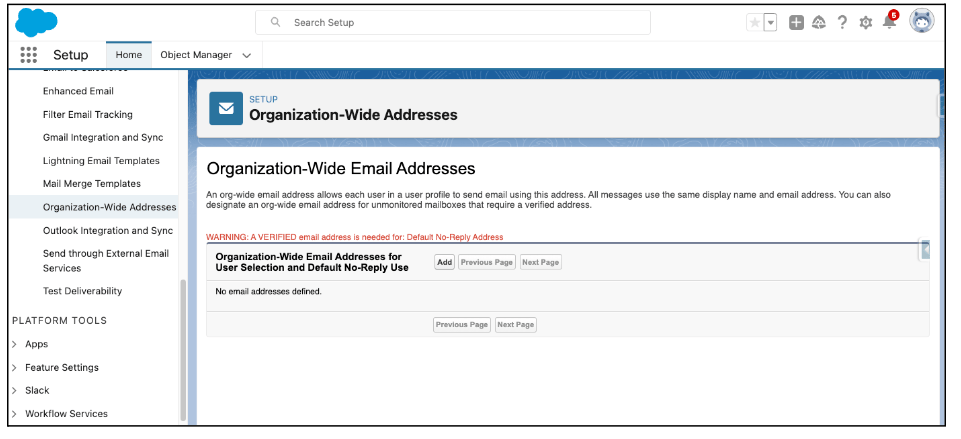
- In Salesforce, click on or search “Organization-Wide Addresses.”
- Make sure the email address you’d like to send emails from is configured here.
- Click on or search “DKIM keys.”
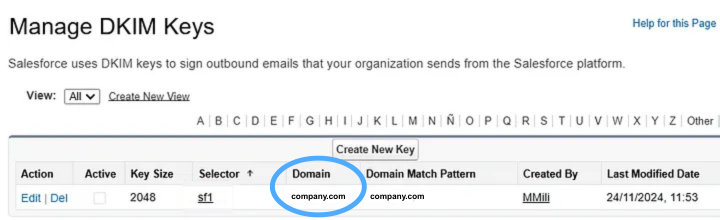
- Verify that the domain you are sending emails from has a DKIM key configured:
- If not, you will need to set this up through your DNS provider. Salesforce provides instructions in their UI on what that will require.
-png.png?width=720&height=220&name=company-com%20(1)-png.png)
- Shortly after registering the keys on your DNS provider, an “Activate” button will be available in Salesforce. Click this button and Salesforce will confirm that the provided domain for emails is available.
- If not, you will need to set this up through your DNS provider. Salesforce provides instructions in their UI on what that will require.
If you do not take these steps with DKIM keys, all emails sent via Salesforce will be sent to spam inboxes.
Halda App Configuration
Navigate to your Salesforce Integration in the Halda app. Click on "View Details" and scroll until you see Export Email Content (Pilot). Click “Edit” and follow the next steps:-png.png?width=688&height=198&name=1%20(2)-png.png)
- Configure the “Email” to be the email you set up in “Organization-Wide Addresses”, which is what we will send the emails from.
- Add a signature like “Jon from Admissions” or “Halda University Admissions Team.”
-png.png?width=688&height=198&name=1%20(1)-png.png)
- Save your edits by clicking the "Save" button in the bottom right corner.
If you experience any issues during this set up process, please contact your Account Manager and/or our Partner Support Team at support@halda.ai for assistance.