![Halda Logo Black Tight-2.svg]](https://info.halda.io/hubfs/Halda%20Logo%20Black%20Tight-2.svg)
Step 1: Add the Data Layer to Your Header
To ensure Google Tag Manager can process events from Halda, you need to add the following script to your website's <head> section above your Google Tag Manager script:
<script>

window.dataLayer = window.dataLayer || [];

</script>
Your <head> section should look like this after adding the script:
<script>

window.dataLayer = window.dataLayer || [];

</script>


<!-- Google Tag Manager -->

<script>(function(w,d,s,l,i){w[l]=w[l]||[];w[l].push({'gtm.start':

new Date().getTime(),event:'gtm.js'});var f=d.getElementsByTagName(s)[0],

j=d.createElement(s),dl=l!='dataLayer'?'&l='+l:'';j.async=true;j.src=

'https://www.googletagmanager.com/gtm.js?id='+i+dl;f.parentNode.insertBefore(j,f);

})(window,document,'script','dataLayer','GTM-XXXXXX');</script>

<!-- End Google Tag Manager -->
Important: Replace GTM-XXXXXX with your actual Google Tag Manager ID.
Example Event Structure
Halda pushes events to the dataLayer in the following format:
JavaScript

dataLayer.push({
   'event': 'HaldaFormSubmit' // })
The example above is just one of the events that can be passed - see below for the full list of possible events.
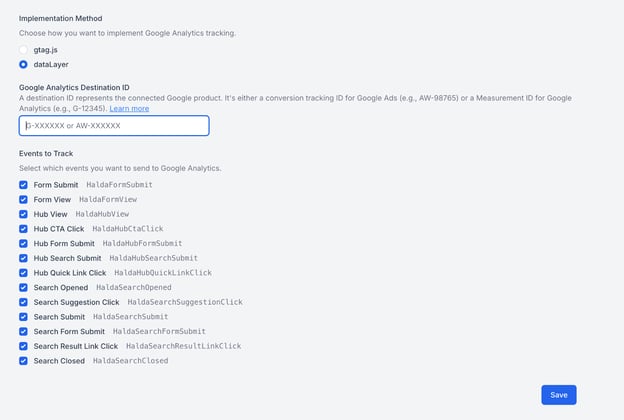
Step 2: Configure Events in Halda
- Navigate to the Integrations page in Halda by clicking the integration icon in the top-right corner.
- Select your Google Analytics integration (either add a new one or edit an existing integration).
- Change the tracking method from gtag to Data Layer.
- Enter your Google Analytics Destination ID.
- Select the specific events you want Halda to track.
Step 3: Create Triggers in Google Tag Manager
You’ll need to create a Custom Event Trigger for each type of Halda event you want to track. Below are the events Halda can send:.png?width=591&height=739&name=Untitled%20design%20(53).png)
How to Create a Trigger
- Log in to Google Tag Manager.
- Select your container.
- Navigate to Triggers > New.
- Choose Trigger Type: Custom Event.
- Set the Event Name to match one of the events listed above (e.g., HaldaFormView).
- Under Trigger fires on, select All Custom Events.
- Click Save.
💡 Pro Tip: You can create a separate trigger for each event or combine multiple events into one trigger using regular expressions (if you want to fire the same tag for several events).
Step 4: Create Tags in Google Tag Manager
For each Halda event you want to track, you’ll need to create a GA4 Event Tag. Here’s how:
- Navigate to Tags > New.
- Select Tag Configuration > Google Analytics: GA4 Event.
- Enter your Google Analytics Measurement ID.
- Under Event Name, enter the exact event name you’re tracking, such as:
- HaldaFormView
- HaldaFormSubmit
- HaldaSearchView
- HaldaSearchSubmit
- HaldaHubView
- HaldaCTA
- HaldaFormSubmit (Hub form submissions)
- HaldaSearchSubmit (Hub search submissions)
- HaldaQuickLink
- etc..
- Click Triggering and select the corresponding Custom Event Trigger you created in Step 2.
- Click Save.
Step 5: Publish Your Changes
- Click Submit in Google Tag Manager.
- Add a name and description for your changes.
- Click Publish.
If you have any questions, feel free to reach out to our support team at support@halda.ai — we’re happy to help you get set up!