![Halda Logo Black Tight-2.svg]](https://info.halda.io/hubfs/Halda%20Logo%20Black%20Tight-2.svg)
If Halda does not offer a direct integration with your system, you may still be able to pass data to your platform using an SFTP connection. SFTP (Secure File Transfer Protocol) is a secure way to transfer files between two systems and is commonly supported by many CRMs, SIS systems, and other data platforms.
Confirming SFTP Availability
To use SFTP, your platform must host its own SFTP server. Halda cannot create or host an SFTP server on your behalf. If you are unsure whether your system supports SFTP or provides an SFTP endpoint, please contact your platform’s support team.
What Halda Needs to Connect
To establish an SFTP connection, the platform you use will need to generate or provide access credentials. At a minimum, Halda requires:
-
Host (the SFTP server address your system provides)
-
Username (a credential created within your system that Halda can use to authenticate)
-
Password (the corresponding password for the username provided)
Once these credentials are created, please share the host, username, and password with your Halda point of contact so our team can initiate the connection.
Mapping Data in Your System
After the SFTP connection is established, you will need to configure mapping or ingestion rules within your platform. This determines how files sent from Halda should be imported and interpreted by your CRM.
Because each system handles SFTP ingestion differently, the setup and mapping process will vary. If you have questions about how your platform manages SFTP imports, we recommend reaching out to their support team for guidance.
Customizing Your File Name
If your system requires an identical file name for processing, you can set this up in the Integrate section of the AI Form.
Click on "Map Fields" and then toggle on the "Static File Name" option. When turned on, the name of your form will automatically populate in the text box, but you are able to change this to be whatever name you would like to consistently send to your CRM.

Customizing File Values
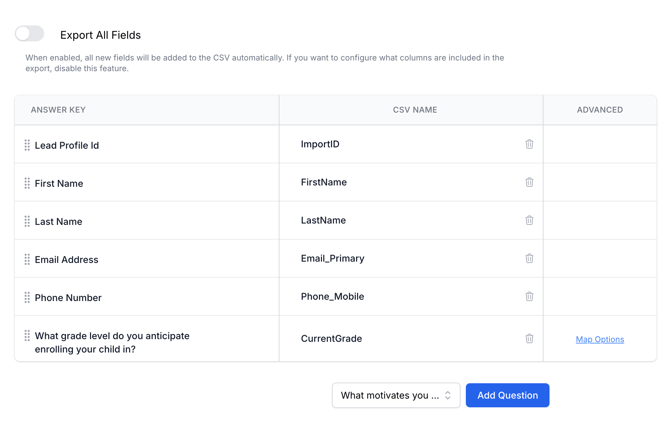
If your system requires specific values to pass to your CRM, you are able to customize your file values in the Integrate section.
Toggle the "Export All Fields" off and customize the CSV Name in the middle column. Make sure to hit "Save Changes" at the bottom of the page before navigating away from this screen.
If you have questions about what Halda sends or need assistance coordinating the setup, please reach out to your Halda account manager.