![Halda Logo Black Tight-2.svg]](https://info.halda.io/hubfs/Halda%20Logo%20Black%20Tight-2.svg)
Overview
URL-encoded webhooks send data in the form of key-value pairs, similar to a traditional HTML form submission. This format is ideal when your CRM requires application/x-www-form-urlencoded inputs.
Information Required to Configure a URL-Encoded Webhook
Your CRM or system must provide:
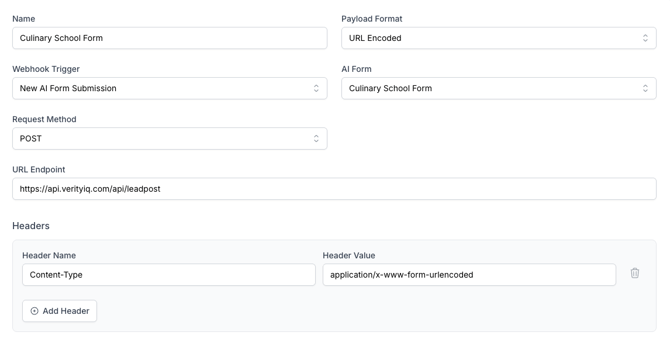
URL Endpoint: Halda will submit a POST request with URL-encoded fields to your provided endpoint.
Headers: Typical examples include:
- Content-Type: application/x-www-form-urlencoded
- Any required authentication headers
- Optional security or signature headers
Query Parameters (optional): Halda can append any required values (e.g., tokens, org IDs) to the request URL.
URL-Encoded Payload Structure
After the required configuration information is entered, the webhook’s parameters can be customized so they align with your CRM’s structure. Halda’s integration team will assist with mapping to ensure correct delivery.
Example URL-Encoded Payload (Inquiry to CRM)
event=inquiry.created&
id=inq_102948&
timestamp=2025-01-14T18%3A22%3A10Z&
first_name=Ava&
last_name=Lopez&
email=ava%40example.com&
phone=555-0100&
program=MBA&
term=Fall+2026&
form_id=leadform_78
Configuring your Webhook
Take the following steps to set up a webhook connection in Halda with a URL Encoded format:
- Navigate to the Integrations tab in the top right corner menu. Once in the integrations page, select "Add Integration" and click "Connect" for the Webhook Export option.
- Name your webhook (we suggest matching the name of the webhook to the AI form it will be connected to), adjust your payload format to URL Encoded, and select the AI Form that you want to trigger the webhook.
- Input your URL Endpoint in the box provided.
- Input any headers by selecting the "Add Header" button.
- Configure your payload fields by clicking the blue "Configure Payload Fields" at the bottom of the screen.
- To customize the values passed by Halda, turn the "Export All Fields" toggle off. This will load all fields Halda will pass. You can remove certain information from sending by hitting the Remove button on the right hand side. You can adjust the value name in the Webhook Field Name text boxes.
- Save your updates with the Save button in the bottom right corner.
URL-Encoded Response Expectations
-
Any 2xx HTTP response is treated as a successful delivery.
-
If your CRM returns an error or fails to respond, Halda will retry sending the webhook automatically.
If you have any additional questions or need assistance with your webhook configuration, please reach out to our support team at support@halda.ai.