![Halda Logo Black Tight-2.svg]](https://info.halda.io/hubfs/Halda%20Logo%20Black%20Tight-2.svg)
Create Import In Halda
- Navigate to the "Integrations" tab in the top right corner menu.
- Select the "Add Integration" button.
- Select "Webhook Import"
- Name your webhook "Student Stage Import from {Insert CRM Name}."
- Select "Create."
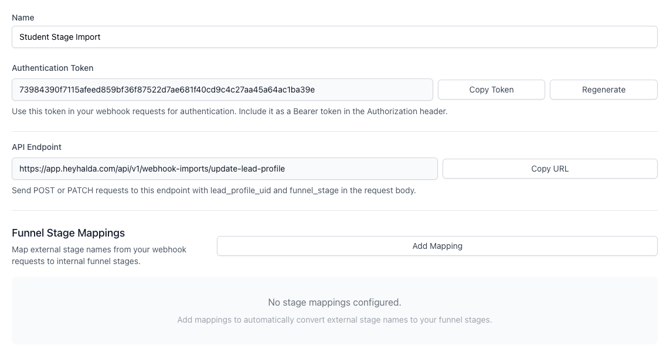
Once you have selected "Create," you will have access to your API Endpoint and Authentication Token needed for the Webhook configuration in Zapier.
Creating your Zapier Connection
- Navigate to Zapier and create a new Zap. Select your CRM as the trigger.
- Configure the trigger to be when updates are made to the property that tracks application/admission decisions.
- Select "Webhook" as your action step.
- Action Event: POST
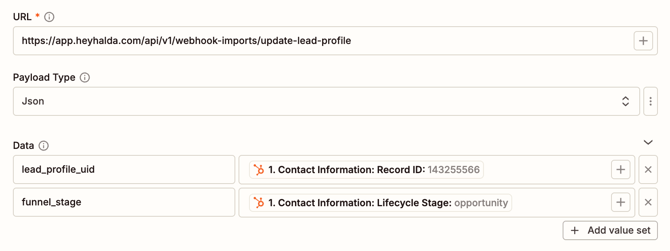
- URL: API Endpoint from the import information in Halda.
- Data: lead_profile_uid -> Halda ID from CRM and funnel_stage -> Application/Admission Decision field.
- Wrap Request In Array: No
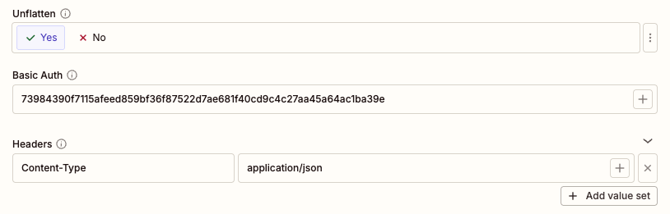
- Unflatten: Yes
- Headers: Content-Type -> application/json
If your Zapier subscription does not support Webhook connections, contact your Account Manager to discuss utilizing Halda's Zapier account.
Testing the Connection
Before your test in Zapier will function, you need to activate your Webhook Import in the Halda app.

After selecting the "Activate" button in the Halda app, finish testing your connection inside the Zap.
If you have any questions about the configuration, contact our integration specialist, Jessie Lampkin, at jessie@halda.ai.